Documentation / Reports and dashboards
Teacher views
This week, mock results, classes and students.
This week
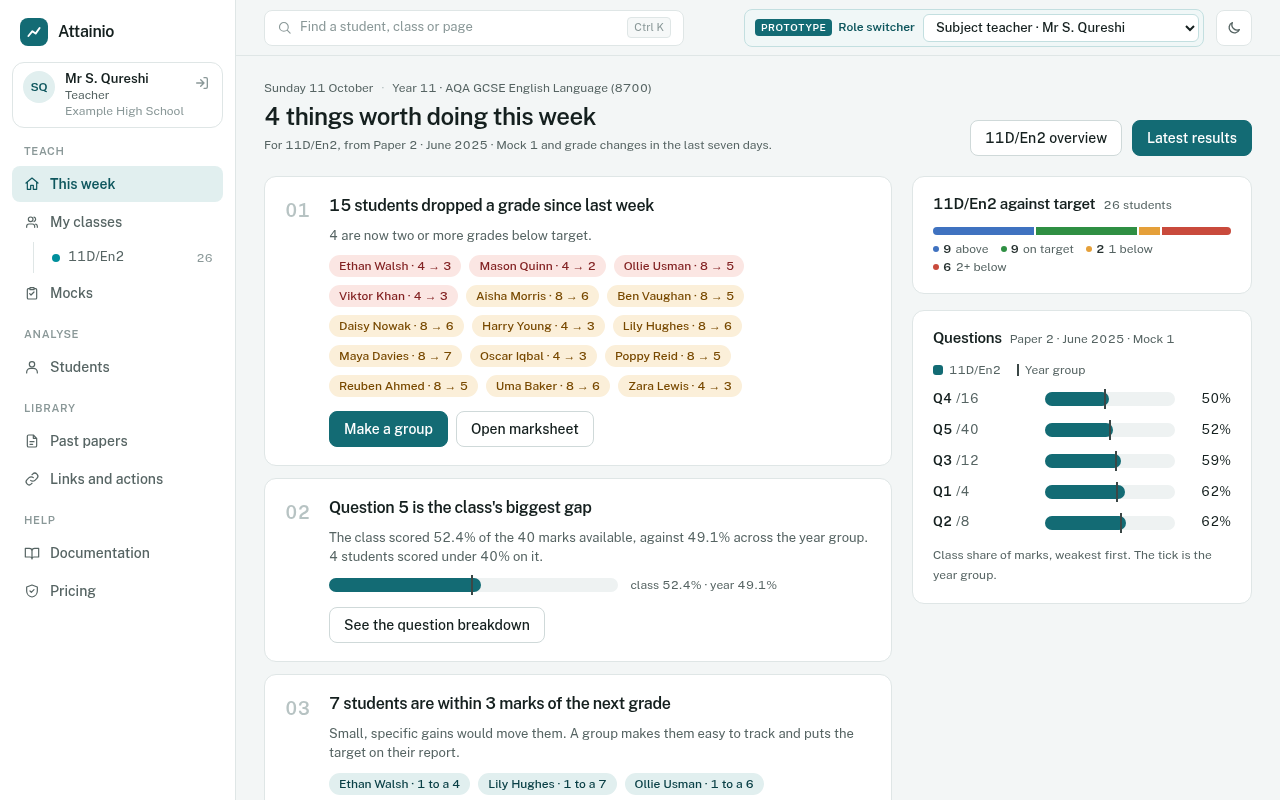
The page teachers land on. Instead of a dashboard to interpret, it is a short, numbered list of things worth doing for one class this week, worked out from the latest marks. Tabs across the top switch between your classes. It can include:
- Students who dropped a grade in the last week, and whether any are now two grades below target.
- The class’s biggest gap: the question where the class did worst compared with the year group, with a link to the breakdown.
- Students within 3 marks of the next grade, where a small, specific gain would move them.
- Predictions to check: predicted grades two or more above working-at, worth confirming before the next data collection.
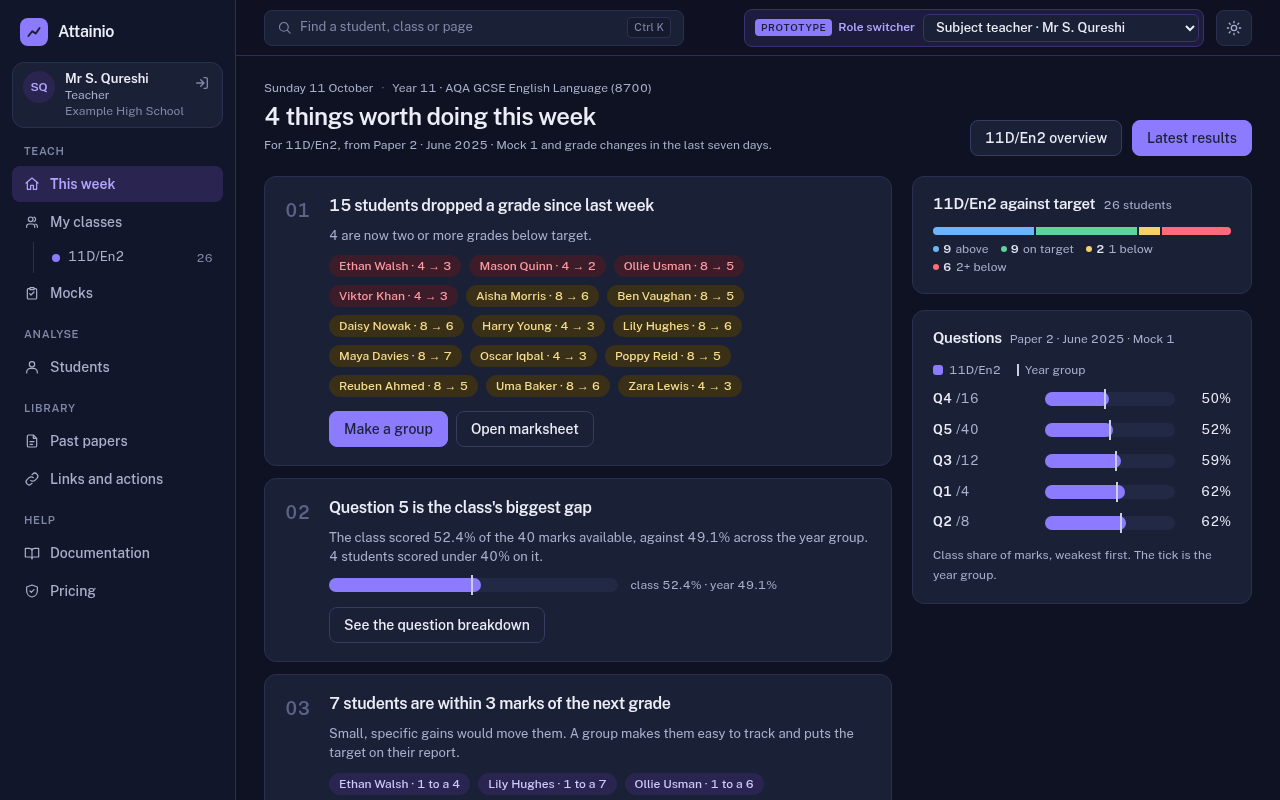
Most items have a button: Make a group turns the students into an intervention group, and Open marksheet goes straight to them. On the right are the class against target and its weakest questions.
Mock results
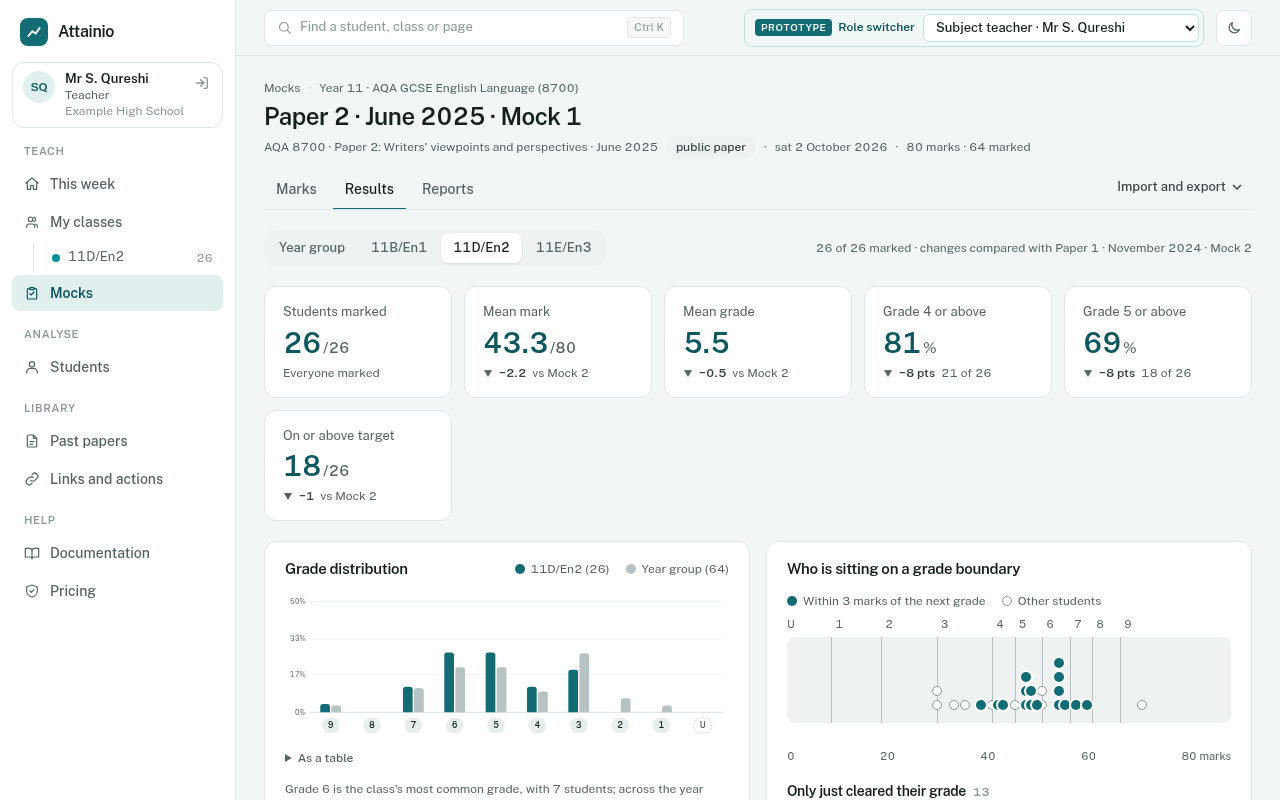
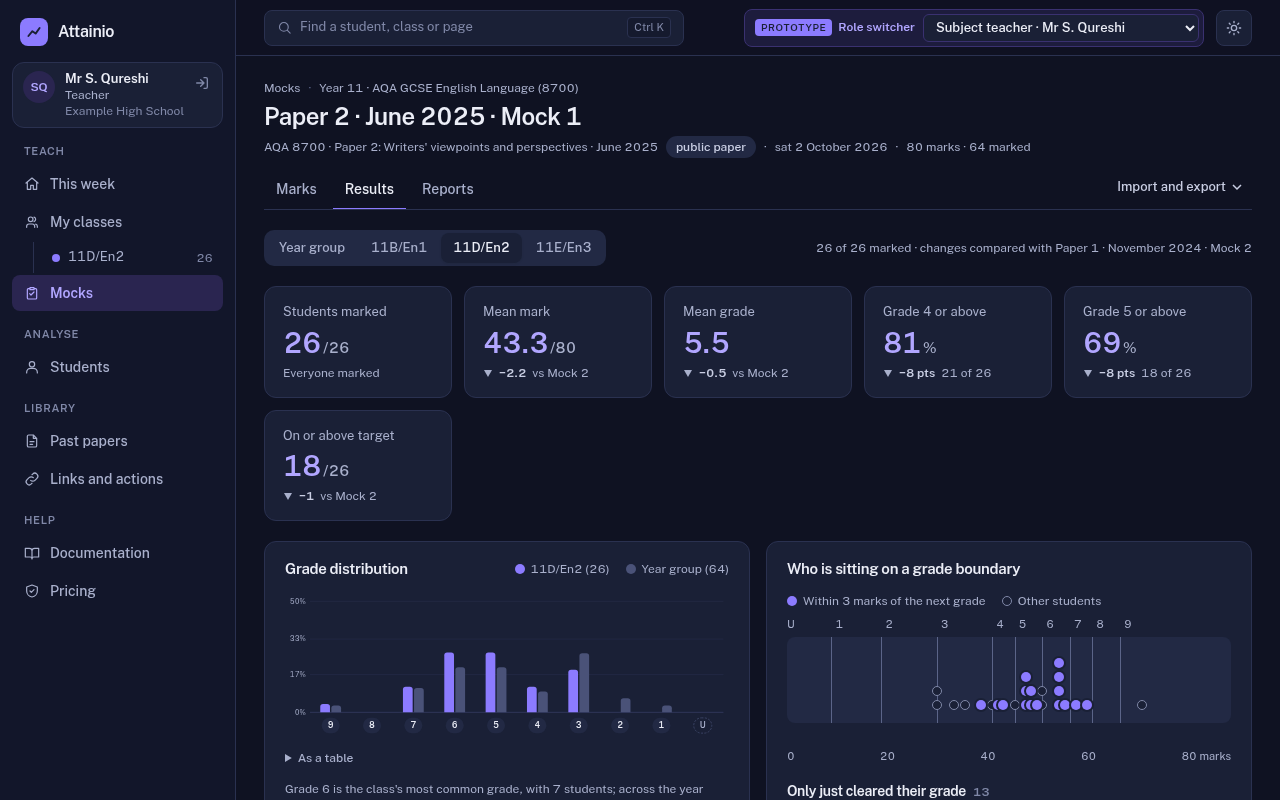
A mock’s Results tab. From the top:
- Headline figures: students marked, mean mark, mean grade, grade 4+ and 5+, and how many are on or above target, each with the change since the last mock.
- Grade distribution: the class against the year group, in percentages.
- Who is sitting on a grade boundary: every student’s mark on a strip marked with the boundaries, highlighting those within 3 marks of the next grade.
- Only just cleared their grade: students a mark or two above a boundary, who could slip back next time.
- Where marks were lost: the share of marks per question (the ten weakest on long papers) against the year group, then by topic, and by assessment objective where the paper has them.
- The students table: marks per question, total, grade, previous mock, change, target, marks to the next grade, and status.
A selector at the top switches between your class, other classes and the whole year group.
Class
Each class under My classes has an overview of where it stands against target, its students with working-at, predicted and target grades, its mocks, and a short “who to talk to this week” list. Teachers can update predictions here.
Below the latest mock, Topics across mocks shows the share of marks the class gained in each topic, mock by mock, and lists the three weakest topics on the latest mock with the students who most need each: a ready-made list for reteaching or an intervention group. See Leader views for how topics are grouped.
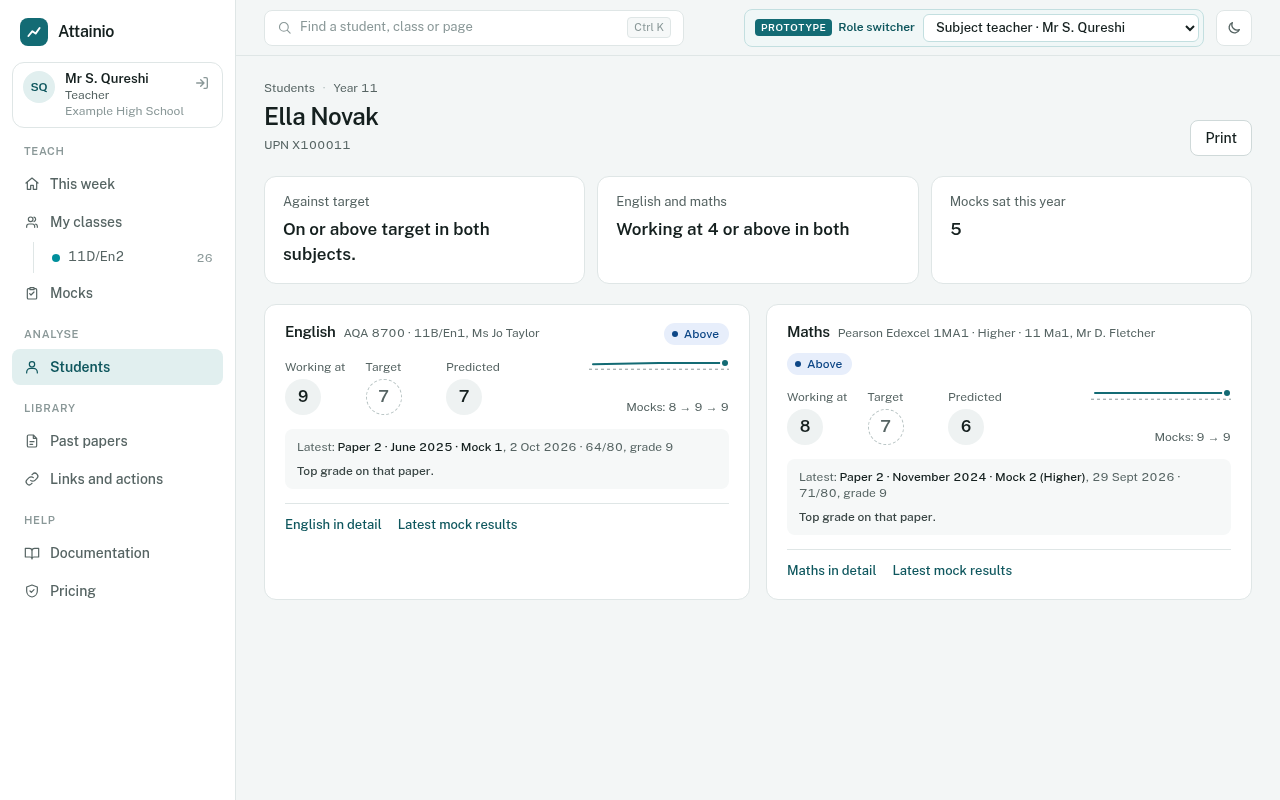
Student profile
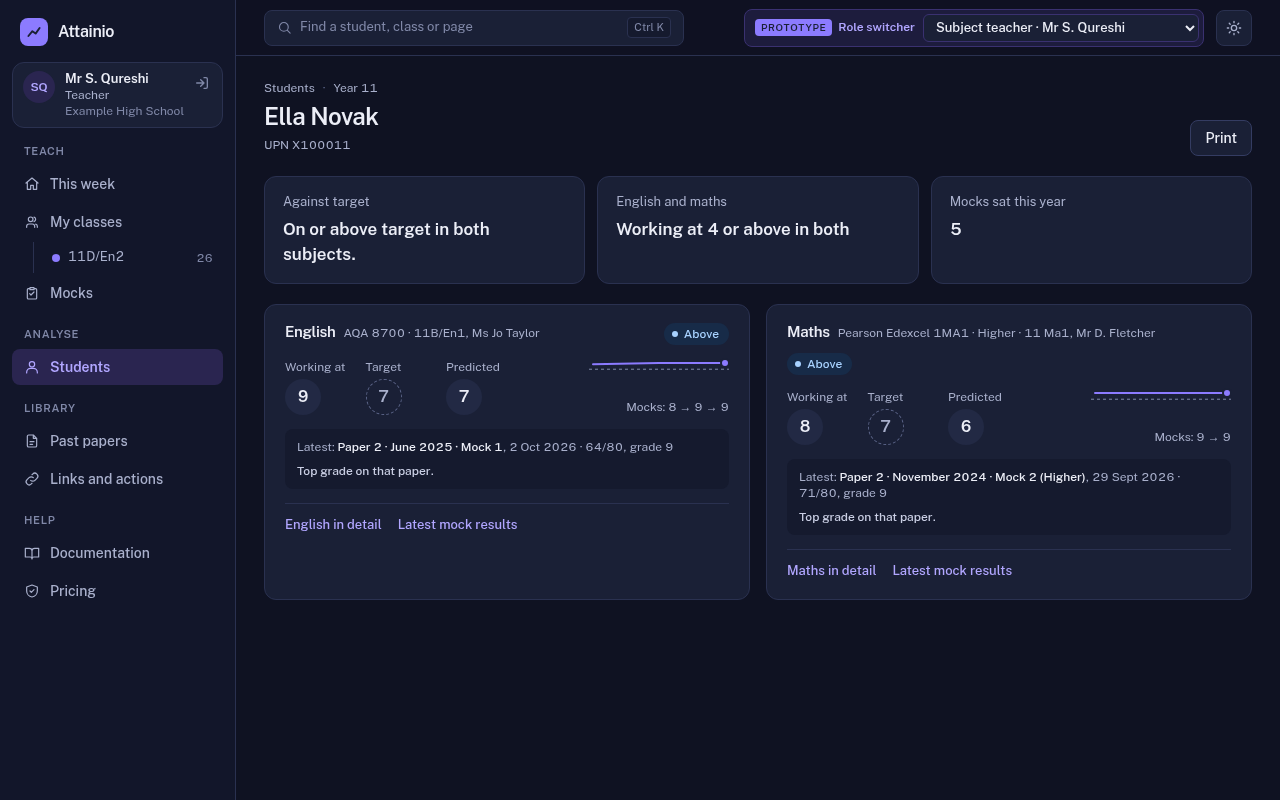
Search for a student or click any student’s name. The profile shows every subject the student is tracked in: working-at, target, prediction, latest mock, a small trend, and the target grid (marks to each higher grade). Each subject has its own tab with the student’s mock history and strengths and gaps by question.
It prints on one page for parents’ evenings. Links and actions teachers have assigned are listed too; see Links, actions and groups.