Documentation / Running the school
Students and classes
Keeping the roll up to date without an MIS: one at a time or by spreadsheet.
Attainio needs to know who is in the school and who is in which class. There are two ways to keep that up to date, and a school uses one or the other:
- MIS sync (an option): students, classes and staff arrive from SIMS, Arbor, Bromcom and the rest every night and every hour of the school day, through Wonde. Nobody types anything in, and changes are made in the MIS.
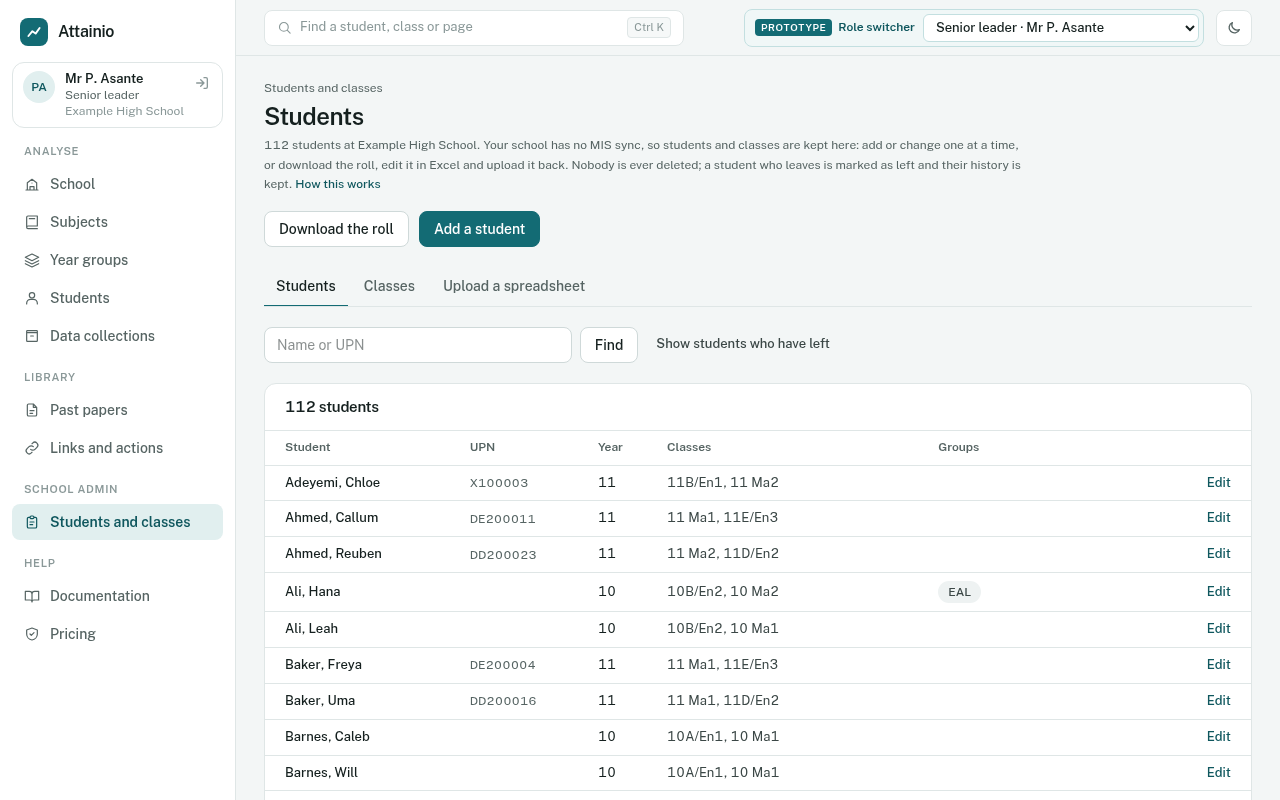
- Kept in the app (Core): the data manager or a senior leader keeps the roll in Students and classes, under School admin in the menu. This is how the demo school works.
One student at a time
Add a student asks for their name, and optionally their year, UPN, gender, Pupil Premium, SEN (K for SEN support, E for an EHC plan) and EAL. Tick their classes underneath. Putting a student in a class also puts them on that class's tracker, so they appear on its marksheets, results and reports straight away.
Edit on any row changes the same details. Mark as left takes a student off the roll: they disappear from lists, dashboards and data collections, but their marks, grades and reports are kept, and Bring back restores them. Nobody is ever deleted.
By spreadsheet
The quickest way to start a year, or to catch up after a batch of changes:
- Download the roll. It lists every student at the school with their details and classes, one row each, and opens in Excel.
- Edit it: add rows for new students (leave Attainio ID blank), change details, move students between classes.
- Upload a spreadsheet and choose Check the file. The app lists every student it would add, change or mark as left, and every row it can't use, with the reason. Nothing is saved yet.
- Save the changes. They are saved together: if anything fails, nothing changes.
How rows are matched
By the Attainio ID column first, then the UPN, then first name, last name and year together. For a student already on the roll, a blank cell or a missing column keeps what is there, so a file with just names and a Pupil Premium column only changes Pupil Premium.
Tick Mark students missing from the file as left only when the file is the whole school's roll, for example at the start of a year.
Rows the app can't use
These are listed with their row number and skipped; everything else is still saved:
- a missing first or last name;
- a year outside 7 to 13;
- Pupil Premium or EAL that isn't Y or N, or SEN that isn't blank, K or E;
- a class name that doesn't exist yet (add the class first);
- an Attainio ID from another school, or the same UPN twice;
- two students with the same name and year and no UPN or ID to tell them apart.
Classes
A class has a name (as on the timetable, such as 11B/En1), a year, the tracker it follows (a subject's course, which decides its papers and grading) and its teachers. Teachers see the classes they teach under My classes. Close the class at the end of a year to hide it; its marks stay.
Mark entry for each mock has its own template with every student's name already filled in: see Entering marks.