Documentation / Start here
Getting started
Signing in, the menu, search, and light and dark mode.
Signing in
Staff sign in with their school account (Microsoft or Google, through the school’s single sign-on) or with an email and password. Families have their own sign-in, by a link sent to their email; see Reports for students and families.
In the demo, Enter the demo on the sign-in page signs you in as an English teacher. Once inside, the Role switcher in the bar at the top of every page switches you to a head of department, head of year, deputy head or trust lead, so you can see what each of them sees.
The menu
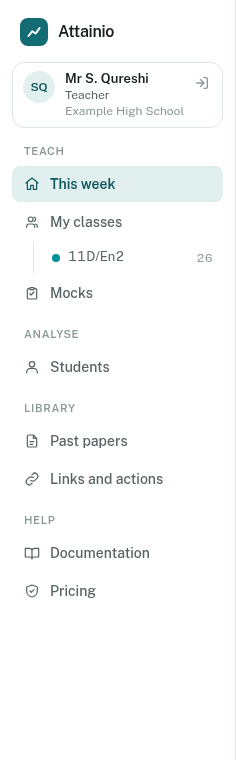
The menu down the left is grouped by what you are doing. You only see the items your role needs.
| Group | Items | For |
|---|---|---|
| Teach | This week, My classes (with each of your classes listed underneath), Mocks | Anyone who teaches a class |
| Analyse | School, Subjects or My subject, Year groups or Year 11, Students, Data collections, Trust | Each item appears for the roles that use it |
| Library | Past papers, Links and actions | Teachers and leaders |
| Help | Documentation, Licensing | Everyone |
Your name, role and school sit at the top of the menu, just under the Attainio logo, with Sign out beside them. On a phone, the menu folds away behind the Menu button at the top. In the demo, the Role switcher, marked Prototype, sits in the bar at the top of every page (on a phone, in a strip just under it) and switches you between the demo people.
Finding anything quickly
The search box at the top of every page finds students, classes and pages. Click it, or press Ctrl K (Cmd K on a Mac), and start typing:
- a student’s name, then Enter, to find that student;
- a class such as “11B”, to jump to it;
- a page such as “results” or “glossary”.
Use the arrow keys to move through the list and Esc to close it.
Light and dark mode
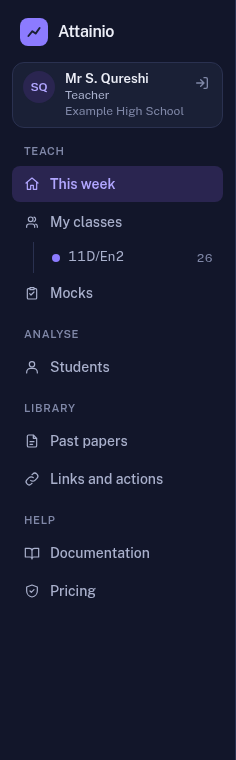
The app starts in the same mode as your device: if your computer or phone is set to dark mode, so is the app. To switch, use the square button with a sun or moon in it:
- Signed out (the sign-in page and these docs): top right, next to Documentation. The sign-in page points to it.
- Signed in: top right of every page, at the end of the bar with the search box.
- On a phone: in the top bar, between the search button and Menu.
The sun shows in dark mode (click for light) and the moon in light mode (click for dark). The app remembers your choice on that device. If you pick the same mode as your device, it goes back to following the device.
Where to go next
- Teachers: Setting a mock, then Entering marks.
- Leaders: Leader views and Data collections.
- Everyone: How grades are worked out.